|
AMM: Audacity #2: Looping
|
- Open Audacity
- Start/ Progams/ Audacity [DOC: AudacityICON]{Go/Applications/Audacity}
- Open the following file:
- 4Student/Out/ThompsonPa/Music_Computers/DigitalExercises/digitalex2.wav
- Change the sound from someone honking their horn twice, to the
sound of a "stuck" car horn.
|
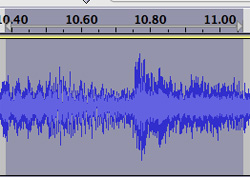
- Select the section of the sound wave you want to "loop."
- This should be in the middle of the "horn" sound.
|
|
- "Duplicate" your selection onto its own track.
|
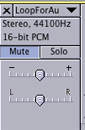
- Mute the "original" audio track.
- Select "Mute" beside
the original track.
|
|
- Move the "Duplicate" track
back to the beginning of the time line.
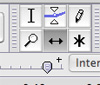
- Use the "Time Shift Tool" to select and move the
track.
|
|
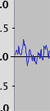
- Magnify the track so that you
can see the sound wave, and where it crosses the "node point."
- Use "magnifying
glass"
- or "+","-" tools.
|
|
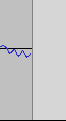
- Edit the beginning of the sound
wave so that it starts at the node point and rises from that point.
- Select
the area to delete and hit "delete" key.
|
|
- Edit the end of the sound wave
so that it rises from below the node point and ends at that point.
|
|
- Copy the sound file and paste
it to the end of itself.
- Select sound file.
- Copy sound file.
- Move cursor to end of sound file and
paste.
- Listen to the resulting file and see if you can "hear" the
junction at the paste point.
- If not then you have a good loop
and can continue pasting to the end of the file.
- If you can hear
the junction then try to "clean up" that
junction point.
- Try creating a very small "crossfade" at
the junction point.
- Magnify the file at the junction point
to a very high level.
- Select a small section at the end
of the original file.
|
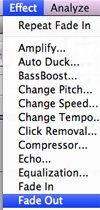
- "Fade Out" that section
of the file.
- Select a small section at the beginning
of the copied file.
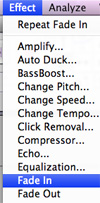
- "Fade In" that section of
the file.
|
  |
|
4) Save to your G drive. 5) Hand in as your name to:
4Student/In/ThompsonPa/Music_Computers
/Digital/Exercise2 |
|
|
|
|
|
|
|
|
|